Compatible assistant
SteerLatch connects Claude, ChatGPT or any MCP-compatible assistant to your Macs and Windows PCs. One assistant can work on several computers at once, and several assistants can use the same computer, each with your consent.
ChatGPT, Claude, Gemini, Grok or Antigravity, even on their free plans: add the SteerLatch connector and your assistant opens, searches, writes and clicks on your Macs and Windows PCs. One assistant for one or several computers, and you stay in control: consent on each machine, a STOP button, revocable access.
3-month free trial: 3 computers, 5,000 MCP calls per month, no credit card. Then free forever: 1 computer, 1,000 calls per month. Mac and Windows.
Works with the free plans of ChatGPT, Claude, Gemini and Grok, and with Antigravity. No paid AI subscription required.
Your AI proposes.SteerLatch acts only within the permissions you grant.
Your computer stays yours.Local control, revocation and a STOP button.
Mac and Windows.One connection to your MCP-compatible assistants.
Install, connect your AI, sort files, build a small app, fill in a form, then press STOP. Demo computer, sample data.
SteerLatch connects Claude, ChatGPT or any MCP-compatible assistant to your Macs and Windows PCs. One assistant can work on several computers at once, and several assistants can use the same computer, each with your consent.
Install the agent on your Mac or Windows PC. It carries out actions on your computer, within the permissions you give it.
Choose how much access your AIs get, keep a STOP button at hand and remove an AI or a computer at any time.
Explore remote computer control and shared memory across AI assistants, subject to your permissions.
Once SteerLatch is installed, you talk to Claude or ChatGPT as usual. Here are requests that work. Try them on a test folder first.
“Sort my Downloads folder by type: PDFs, images, documents.”
It lists the folder, creates subfolders and moves the files into them.
“Find the March electricity bill on my computer and summarise it.”
It searches for the file, reads it and gives you the key points.
“Rename the photos in this folder by adding their date at the start of the name.”
It reads the file dates and renames them one by one.
“Look at my screen and explain this error message.”
It takes a screenshot, reads the message and suggests a fix.
“Build a spreadsheet of my expenses from the invoices in this folder.”
It reads the invoices and creates a spreadsheet file on your computer.
“Tell me what takes up the most space on my disk.”
It runs a controlled command and sums up the result.
Before acting, your AI asks for your approval on the computer, and the STOP button halts everything at any time. Keep a backup of your important files.
Remote control from your phone, several computers, shared memory between your AIs, use cases by profession and the full feature list: it is all on the How it works page.
Official SteerLatch apps
To connect an AI assistant to your Mac or Windows PC, first install and authorize the desktop agent. The iPhone companion is already published on the App Store: see your computers, use STOP and open your dashboard. Browser-based desktop control is a separate feature that must be enabled locally on the computer first.
The AI suggests; your permissions decide what is possible.
The agent runs on your device with operating-system rights and SteerLatch permissions.
Your files and screenshots stay on your computer. Only what you ask for is sent, encrypted, to your AI provider, through our relay, which never stores it.
Own the computer or have explicit authorization. Do not expose confidential files to the AI without need.
Planning remote AI access? Read our practical guide to permission, consent and STOP. Stopping a task cannot undo actions already completed.
3-month free trial with no card, then a permanent free plan. Every paid plan includes at least 3 computers, monthly with no commitment, cancellable online.
3 PCs · 5,000 MCP calls/month for 3 months, then free forever: 1 PC · 1,000 calls/month
Start for free3 PCs · 10,000 MCP calls/month
Choose3 PCs included, up to 10 · 20,000 MCP calls/month
Choose3 seats and 3 PCs minimum · 20,000 MCP calls/seat
Choose3-month free trial: 3 computers, 5,000 MCP calls per month, no credit card. Then free forever: 1 computer, 1,000 calls per month. Mac and Windows.
Available today: team accounts with invitations and roles, computers assigned to each member, per-AI rights and access duration, mouse and keyboard reservation between AIs, global and per-computer STOP, action history, Mac and Windows.
3-month free trial: 3 computers, 5,000 MCP calls per month, no credit card. Then free forever: 1 computer, 1,000 calls per month. Mac and Windows.
Use only a personal computer and test files. Do not share sensitive data.
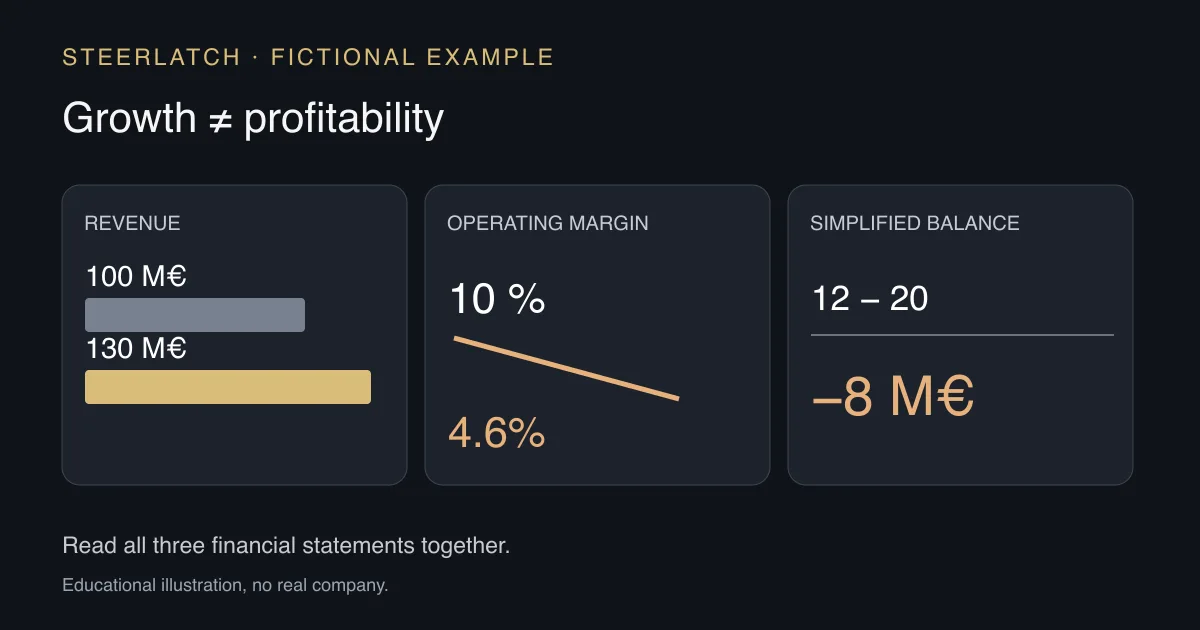
A practical guide to reading revenue, operating margin, cash flow and capital expenditure in listed AI company filings, with a worked example.

Learn what SteerLatch does: connect compatible AI assistants to authorized Mac and Windows computers, understand permissions and get started safely.
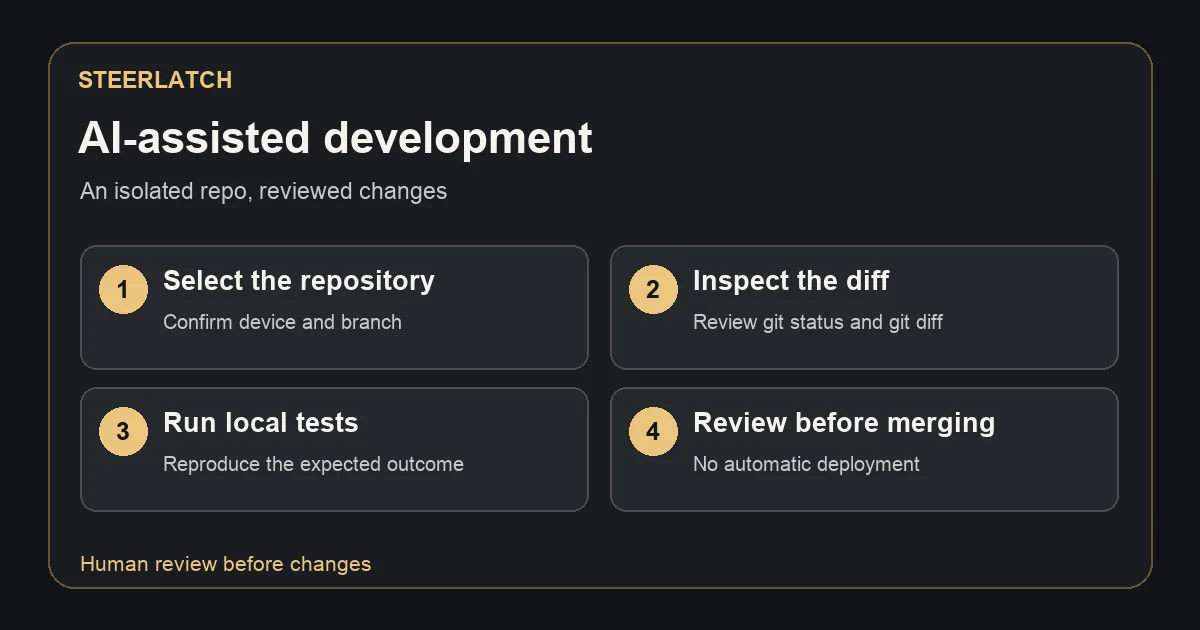
A reproducible workflow for using SteerLatch with an AI assistant on an authorized Git repository, reviewing differences and testing without deploying.
Use only a personal computer and test files. Do not share sensitive data.
3-month free trial: 3 computers, 5,000 MCP calls per month, no credit card. Then free forever: 1 computer, 1,000 calls per month. Mac and Windows.
Compatible MCP assistants can connect to your computer. Availability depends on each assistant and its rules.
Yes. Your AI lists your authorized computers and picks the one to act on. Each conversation keeps its computer: three conversations can work in parallel on three machines, sharing the call quota.
ChatGPT and Claude can already act on a computer, and ChatGPT can connect several with its app installed on each. SteerLatch works with the AI of your choice, including free Claude, gives each AI its own rights and access duration, and keeps consent and STOP on each computer.
Not with Claude: its free plan accepts one custom connector, and SteerLatch needs only one for all your computers. For other assistants, it depends on their own terms.
Not with the mouse and keyboard: the AI using them reserves them for a few minutes, and the others get a clear message with its name and end time. They can keep reading files or work on another computer.
Yes. In your account each AI has its own rules: access level, allowed computers and duration (30 minutes, 1 hour, 1 day…). At the chosen time, access ends by itself.